
Search
- Subdomain search: enter a root domain to find recorded subdomain names.
- Reverse IP: enter an IP address or CIDR network to find associated domain records. Association in a dataset does not prove common ownership or current hosting.
- Advanced search: combine supported fields and conditions. See the syntax guide.
Results reflect collected DNS records and their indexing freshness. Normal record search uses pagination with a 10,000-record result window; subdomain-name views use their own pagination. Your plan can impose lower limits. A displayed total does not mean all rows can be retrieved through ordinary page numbers.
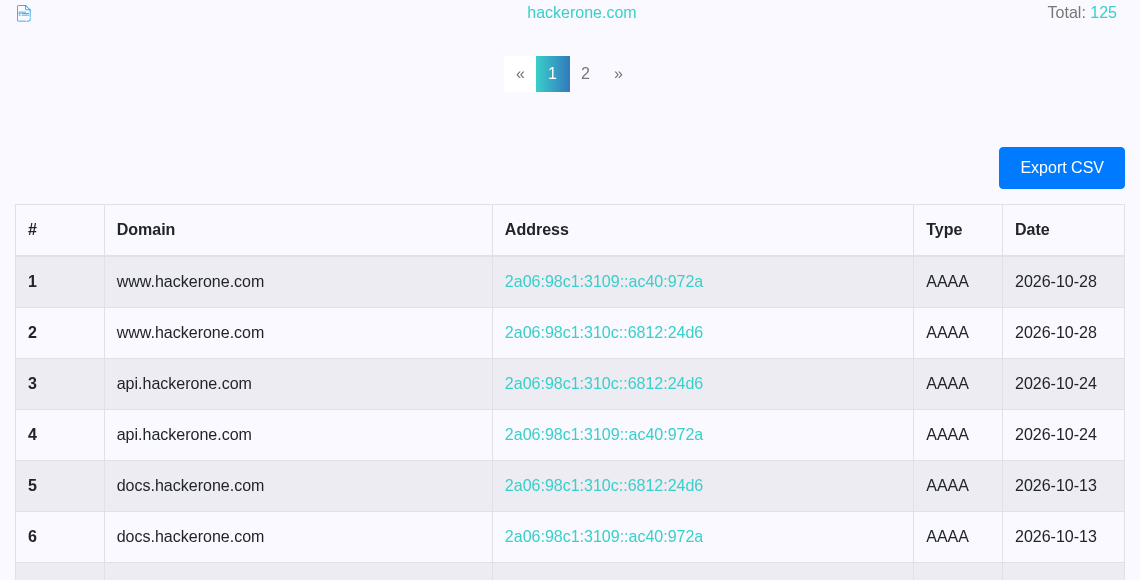
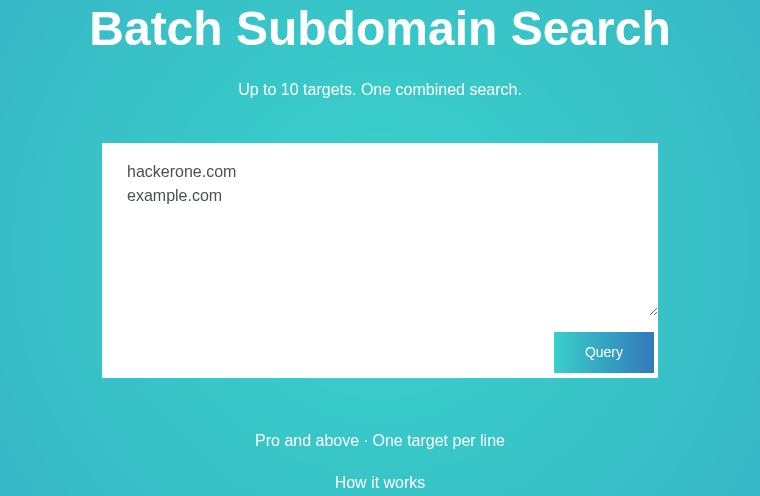
Batch search
Pro, Pro Plus and Max members can search up to 10 targets of one type using multiline Subdomain or Reverse IP search. Select Export CSV beside the results total to export the combined batch, with optional ZIP compression and your plan's export limit. Read the batch search guide.
Monitoring
Active Pro, Pro Plus and Max accounts can monitor new subdomains, hostname IPs, or names on an IP/CIDR. Checks run hourly and notify each newly discovered value once. Read the monitoring guide for baselines, quotas, status explanations and retries.
Reports and downloads
Domain Report generation allowances are Pro: 1, Pro Plus: 10 and Max: 100 per UTC calendar month. Unused generations do not roll over. Queued tasks reserve a generation; successful tasks consume it, and terminal system failures release it. Deleting a report does not restore allowance. Viewing or downloading a saved report does not consume a generation. Regenerating a report consumes another generation. Upgrades increase the allowance without resetting usage. Annual and existing lifetime memberships receive monthly allowances too. Up to three jobs per account can be queued or processing; attempts are limited to 20 per hour.
- Domain Reports is available to Pro, Pro Plus and Max accounts. Reports are background snapshots of root-domain data, not continuously updated monitors. Report downloads support TXT for names/IPs/networks, CSV for DNS records and JSON for the full report, with up to 100,000 / 300,000 / 1,000,000 entries per exported collection for Pro / Pro Plus / Max.
- Pro, Pro Plus and Max can create background search exports through the export API. These exports are CSV, optionally in a ZIP file. Export limits are separate from normal search pagination.
- Monitoring offers current values as TXT and discovery results as JSON from its own pages.
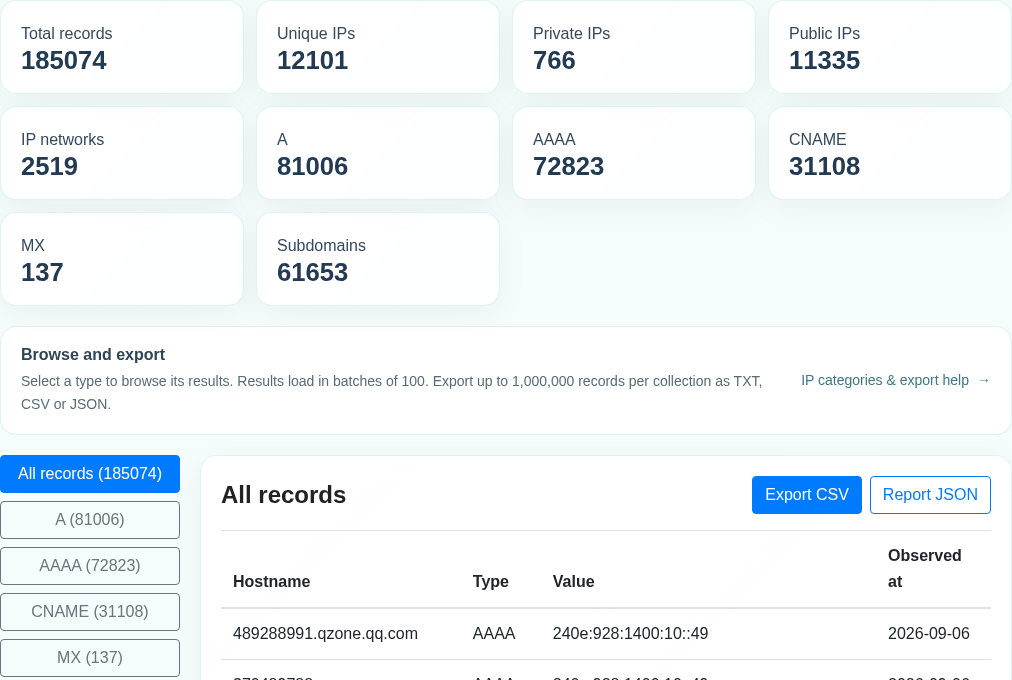
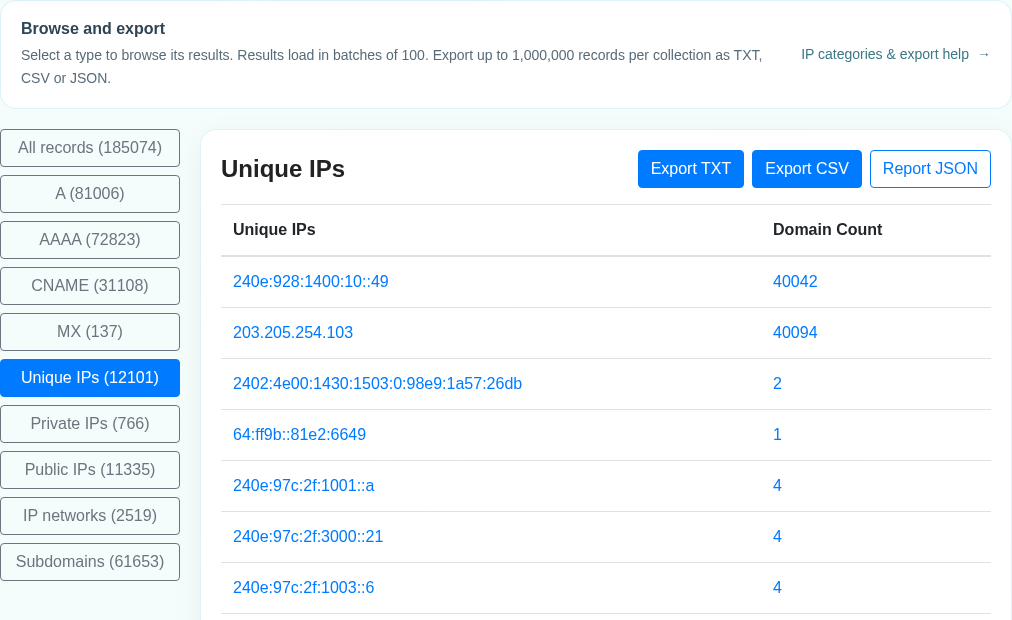
Domain Report IP categories and exports
Unique IPs contains valid A/AAAA addresses from the saved report. Public IPs contains globally reachable unicast addresses. Private IPs groups all remaining addresses, including private networks, loopback (127.0.0.1), 0.0.0.0/8, link-local, shared CGNAT, multicast and reserved ranges. This is a simplified report grouping, not a connectivity test. Both categories together cover all unique IPs.
Click an IP, network or Domain Count to view its associated DNS records within this saved report. Repeated observations remain visible; Domain Count counts distinct hostnames, including the root. These links never expand into other targets through a site-wide search. Dates display as YYYY-MM-DD. Matching records can be exported as CSV; Report JSON always exports the full report.
Address lists support single-column TXT and CSV with Domain Count. Full Report JSON includes private_ips and public_ips. Each exported collection is limited by your plan: Pro 100,000, Pro Plus 300,000, Max 1,000,000 rows, while statistics cover the full snapshot. Older reports are updated from their saved IPs without a new search query.
IP networks group IPv4 addresses into /24 and IPv6 into /48, counting each hostname once per network. Subdomain lists exclude the root. DNS record totals include repeated observations.
Account and API access
Use Profile to manage your profile and, with Pro, Pro Plus or Max, generate or replace an API key. See Subscription for your current membership and billing controls. The API guide describes authentication, response fields and downloads.
On Pricing, Pro Plus offers two payment options: card subscriptions at $25 monthly or $250 yearly that renew automatically, and WeChat payments of ¥160 for one month or ¥1,600 for one year that do not renew automatically. The selected payment amount and currency appear in your payment history; the subscription page shows when access ends.
Request rate limits
Ordinary web searches allow 30 requests per minute per public IP. Exceeding this rate can trigger a browser verification step. API and CLI searches, batch queries, DNS Graph data, report results and exports, and task submissions share a separate allowance of 60 requests per minute per public IP. Multiple users on the same network share these allowances, regardless of their plan.
Cloudflare applies these limits before requests reach RapidDNS. If a request is stopped there, our server cannot show the normal page or generate an in-page notice. An already-open page may display the error returned by a later request; opening a page, submitting a form or downloading a report can instead show Cloudflare's response directly. Complete any browser verification shown. For an API request-rate error (HTTP 429), wait 60 seconds before retrying.
Status polling and downloads of already-generated files do not consume this allowance. Account usage, report-generation and export limits apply separately; follow the specific error message for those limits. See rate limits and exceptions.
Messages and feedback
Messages show their full saved content and a direct View Report or View Changes button when a result is available. Click a title or View message to open its detail page; opening a message marks it as read. Use Older messages to browse earlier updates.

Feedback
Click the floating Feedback button on any page, or open Feedback. Enter your nickname, feedback and a valid reply email. Email is required so our team can respond by email. Signed-in members have their account email filled in automatically; guests must enter their own. You can edit these details before sending. The optional Related page URL starts with your current page in the floating form; change or clear it to identify the affected page.
Optionally attach one PNG, JPEG or WebP screenshot, up to 5 MB, 16 megapixels and 8000 pixels per side. Animated images are not accepted. Screenshots are re-encoded and metadata is removed. Each screenshot receives a unique, unguessable link that expires after 7 days. Anyone holding the link can view it until expiry, including the team receiving it via Feishu. Avoid sensitive information in feedback or screenshots.
Your feedback is saved before confirmation and includes a reference number. Delivery retries automatically if temporarily unavailable. The form accepts up to five submissions per IP address per hour. Repeating the same submission after a network error does not create another entry.
RapidDNS CLI
Search DNS records and download exports from your terminal with the official RapidDNS CLI.
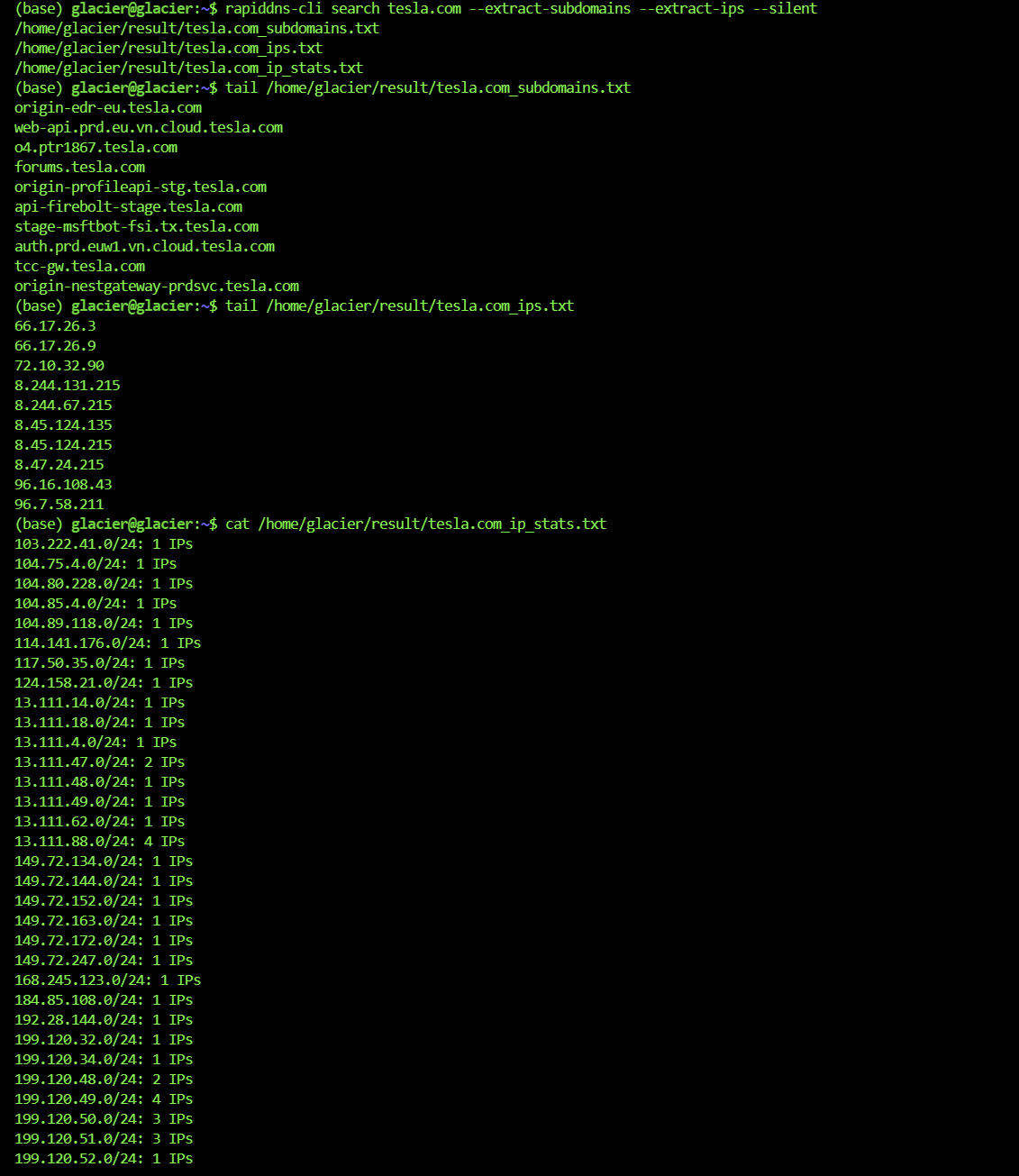
The terminal screenshots below are from the RapidDNS Blog walkthrough. They show example searches and output; use your own targets with the commands in this guide.
Install
With Go 1.24.13 or newer, install the CLI and add your Go binary directory to your PATH:
go install github.com/rapiddns/rapiddns-cli@latest
rapiddns-cli --help
You can also download a binary for Linux, macOS, or Windows from the
official releases.
Release binaries are named rapiddns or rapiddns.exe.
The examples below use rapiddns-cli, the name installed by Go; replace it with your binary name when needed.
Configure your API key
Copy your API key from your profile, then configure it locally:
rapiddns-cli config set-key YOUR_API_KEYThe CLI saves this configuration in ~/.rapiddns.yaml. Keep your API key private.
CLI searches and export submissions share the API allowance of 60 requests per minute per public IP. Each search page is a request; multiple keys or CLI processes on the same network share the allowance. If a request-rate limit returns HTTP 429, wait 60 seconds before retrying. Export status checks and downloads of completed files do not consume this allowance. See request rate limits.
Search domains, IP addresses, and networks
# Subdomains
rapiddns-cli search example.com --type subdomain --max 1000

# Reverse IP lookup
rapiddns-cli search 8.8.8.8 --type ip --max 1000

# IP network
rapiddns-cli search 8.8.8.0/24 --type ip_segment --max 1000

# Advanced query
rapiddns-cli search "domain:example AND tld:com AND type:A" --type advanced --max 1000
Search returns JSON by default and fetches additional pages automatically, up to the requested
--max. Use a positive number for this limit. Without an explicit limit, search requests up to 10,000 records.
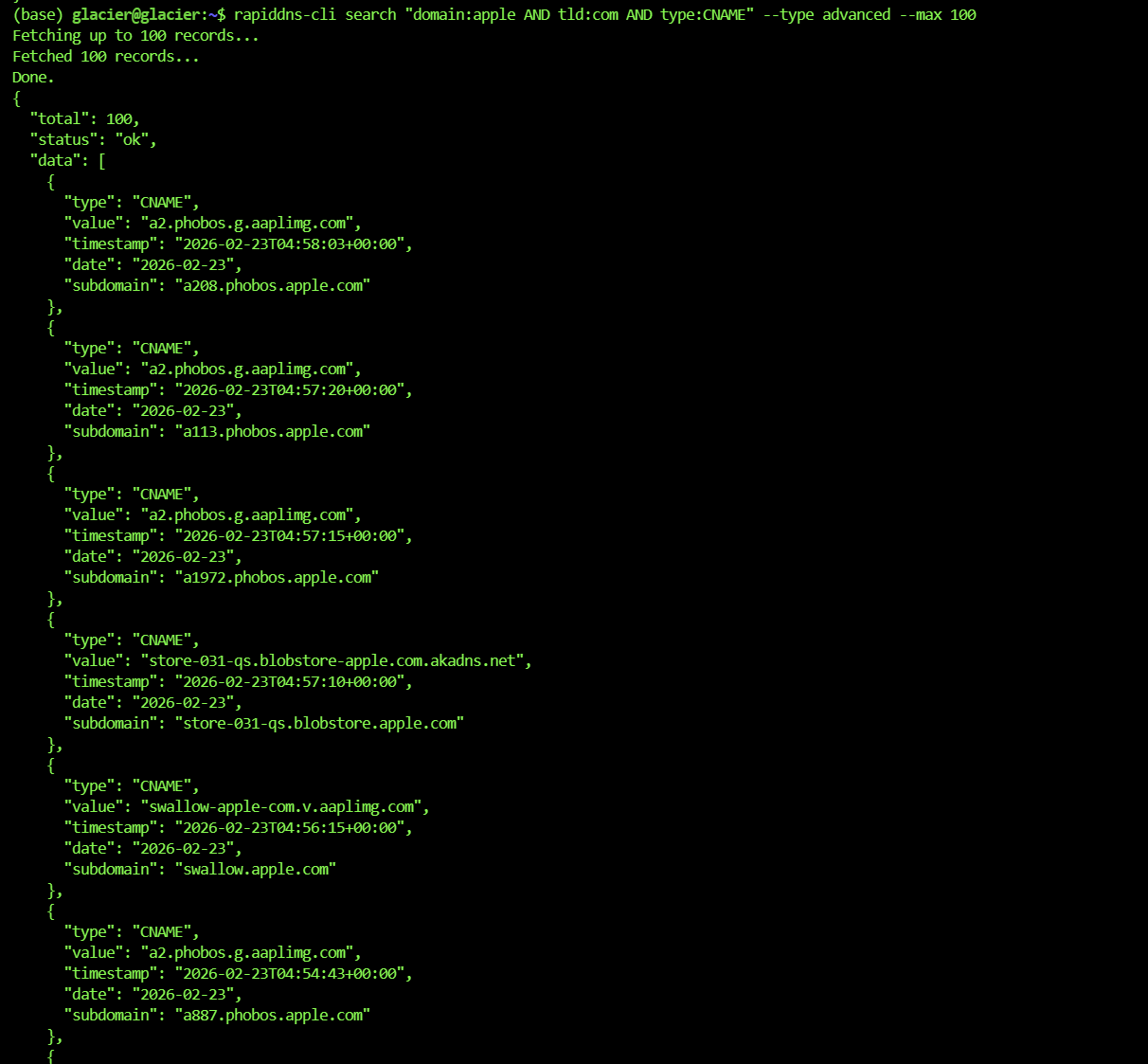
For all supported fields, including @timestamp date ranges, see the advanced search syntax guide.
Save results or print a list
# Save records as CSV
rapiddns-cli search example.com --max 1000 -o csv -f results.csv

# Print a deduplicated list of subdomains
rapiddns-cli search example.com --max 1000 --column subdomain -o text

# Save that list using shell redirection
rapiddns-cli search example.com --max 1000 --column subdomain -o text > subdomains.txt

# Extract subdomain and IP lists, plus IP network statistics
rapiddns-cli search example.com --max 1000 --extract-subdomains --extract-ips
With -f results.csv, the file is saved as result/results.csv beneath your current directory.
An absolute output path is used as provided. Shell redirection writes to the path chosen by your shell.
--column selects console output only; it does not change files saved with -f.
Export a larger result set
Export creates a server-side task. The CLI waits for it to finish, downloads the result into
result/, and extracts the ZIP archive by default.
# Export subdomain records
rapiddns-cli export start example.com --type subdomain --max 10000

# Export reverse IP results (export uses the type "sameip")
rapiddns-cli export start 8.8.8.8 --type sameip --max 10000

# Export an advanced query and extract subdomains from its CSV
rapiddns-cli export start "domain:example AND tld:com AND type:A" --type advanced --max 10000 --extract-subdomains

# Check a task using the ID printed when it started
rapiddns-cli export status TASK_ID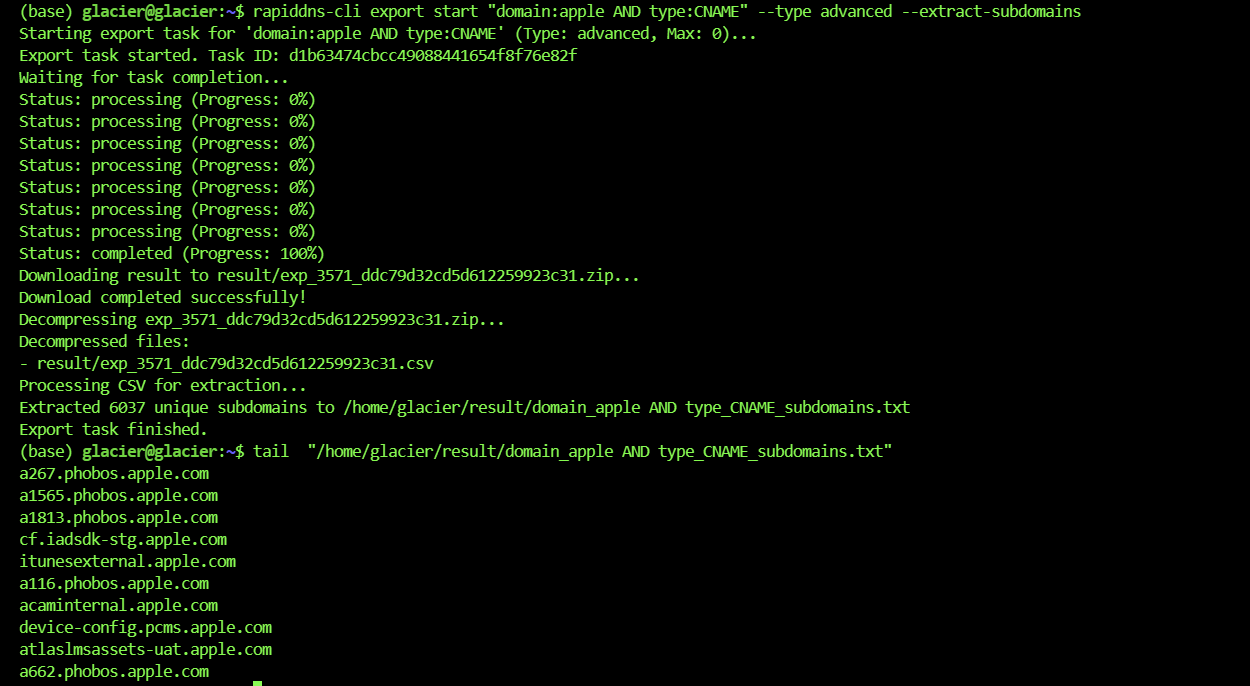
Output and access
| Output | Location or behavior |
|---|---|
| Search formats | -o json, -o csv, or -o text |
| Extracted subdomains | result/{keyword}_subdomains.txt |
| Extracted IP addresses | result/{keyword}_ips.txt |
| IP network statistics | result/{keyword}_ip_stats.txt; IPv4 /24 and IPv6 /64 groups |
| Export downloads | result/; list extraction requires a CSV result |
API access requires an active Pro, Pro Plus, or Max subscription. Results and export availability remain subject to your account permissions and API limits. An export and its status check require a configured API key.
For command options, run rapiddns-cli search --help or rapiddns-cli export start --help.
See the official CLI documentation
for further examples.
When an operation fails
Check the status shown with the task. Retrying monitoring rules recover automatically and retain their saved content. Background exports and reports have separate statuses. If a problem persists, provide the target, action and displayed check time when contacting support; never include your API key.